Phone Charging Station Offline? How to Get It Back Online and Keep It There
JB Charging Team

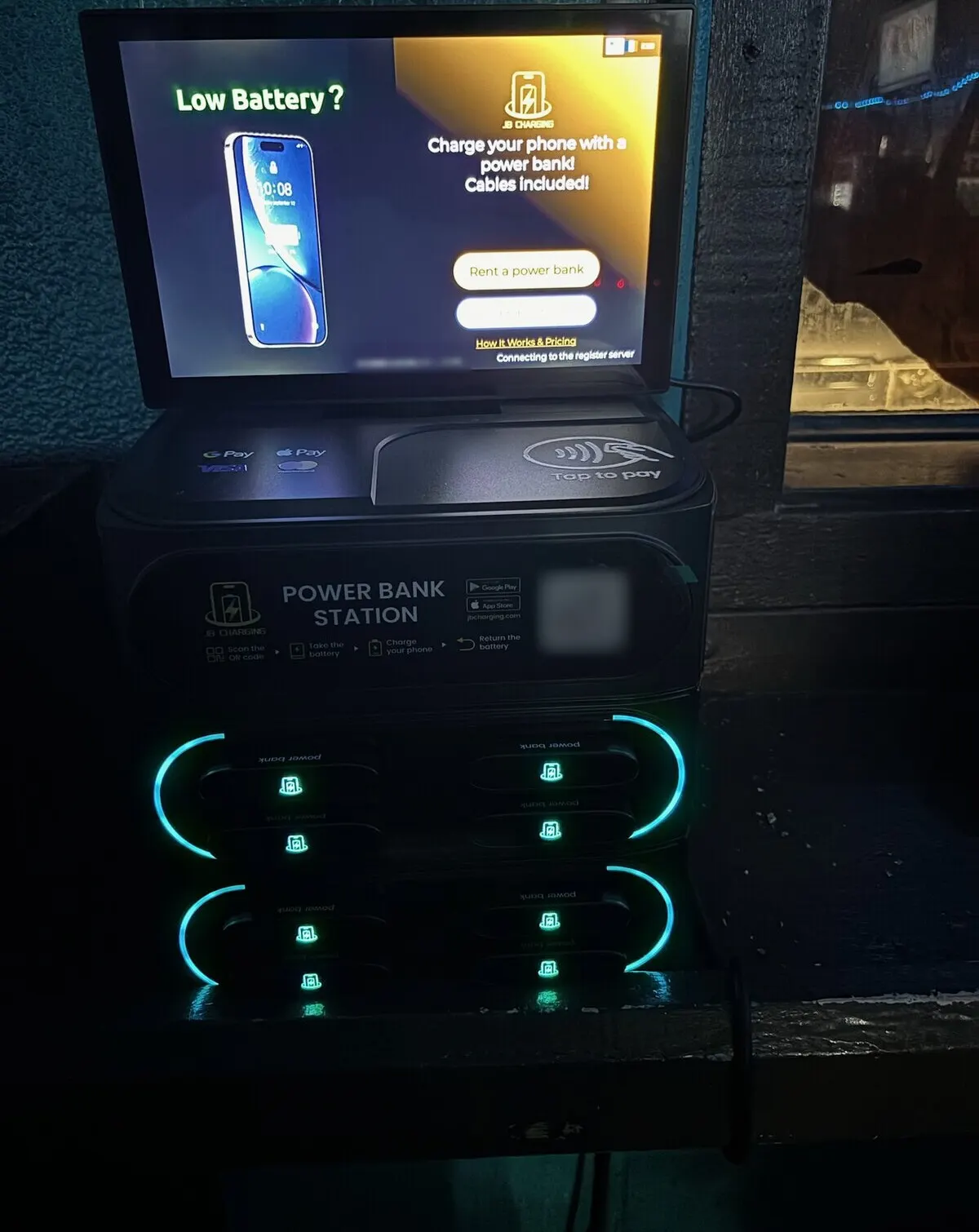
When your portal shows a phone charging station offline, the cause is often dull: a pulled plug, an outlet on a light switch, a room where 4G is weak. The venue may not notice, so the fix starts with you, and often it's a text to the manager, not a drive.
Short version: offline means the station lost power or lost its connection. Ask the venue if the screen is lit. Dark: check the plug, the adapter cable and whether the outlet is on a switch or timer. Lit: power-cycle it, then check signal and the Wi-Fi backup. Still down? Email team@jbcharging.com with the station ID and a photo of the screen.
Charging station offline? Start with a text
Text rather than call; a manager mid-shift can answer a text between tables. Keep the ask small:
Hi [name], it's [your name] with the phone charging station. My dashboard shows it's offline. When you get a second, is the screen lit? If it's dark, could someone push the plug firmly into the wall? A photo of the screen helps. Thanks.
Overnight alert at a venue that was closed? See the first pattern below before you act. Never online since you installed it? That's setup, not an outage: go straight to 5.
1. Ask: "Is the screen lit?"
- Dark: go to 2.
- Lit: go to 4.
2. Check the power at both ends. Is the plug pushed firmly into the wall? On a J8 Pro, also check where the adapter cable meets the station. On a power strip or extension cord, plug it straight into the wall.
- Screen comes on: go to 6.
- Still dark: go to 3.
3. Test the outlet with a phone charger or a lamp. Look for a wall switch, a timer, or a breaker that's tripped or shut off at close.
- Outlet dead: flip the switch, reset the breaker or move to an unswitched outlet within cord reach, then go to 6. If the breaker trips again with the station plugged in, stop resetting it. Leave the station unplugged and go to 5.
- Outlet works, station still dark: go to 5.
4. Lit but offline: restart, then check signal. Have them unplug it at the wall, wait a moment, plug it back in and give it a few minutes. Ask for a photo of the screen, status text included, and what's changed lately.
- Back online: go to 6.
- Still offline: send the step 5 email now and plan a visit. On site, connect the station to the venue's staff Wi-Fi with our support team's help, or try a spot nearer a window or street-side wall (a J24 Pro weighs 72.8 lb; bring help). Then go to 6.
5. Email team@jbcharging.com. Copy this and fill it in:
Subject: Station [ID from your portal or the screen] offline since [when the alert first appeared]
Venue: [name, city]. Screen: [lit or dark]. Staff last saw it lit: [day, time]. Tried: [plug reseated / outlet tested / power-cycled at (time) / Wi-Fi]. Signal on my phone at the spot: [strong or weak]. Photos attached: screen, plug, outlet. Order number, if it looks like hardware: [#].
Strong signal on your phone but the station still won't connect? Say so; the station's own connection may be the problem, not the room. Running more than a handful of stations? A spare unit lets you swap out a faulty one while a warranty claim is handled.
6. Confirm it, then remove the cause. Check the portal shows it online with no card-reader alert, and test-rent on your next visit. Then fix the cause (label the plug, move off the switched outlet, add the Wi-Fi backup) and log it in your venue record, template below.
Staying online is the cheapest lever you have
Venue and placement decide what a station can earn. Staying online decides how much of that it actually gets, and it's the cheapest of the three to fix.
Count it in machines. Say you run 10 stations and each sits dark 3 days a month: 30 station-days, one machine you paid for and didn't run. Get that near zero and you've gained a station without buying one, about $950 of hardware at 5-pack list prices at the time of writing.
Now in dollars, with made-up numbers. Say a bar station would have done 4 rentals over a weekend at $5 each (at the default $3 per 30 minutes, an hour is $6). Staff unplug it Thursday night to run a floor scrubber. Check your portal Friday morning and one text has it back before doors. Check Monday and the weekend is gone: $20 of rentals, $16 of it your 80%, before any venue share. A quiet weekend costs less, a busy one more, and an outlet on a timer repeats the loss every night until you move the plug.
No network stays online every minute, ours included. What you control is how fast you notice and whether the cause comes back.
How you find out: the "needs attention" list
The Overview page in your Distributor Portal has a "needs attention" list. It puts the machines worth acting on first; it isn't a full roll call. Scan the station overview too, especially for a machine you placed recently, so a quiet station that goes dark doesn't slip past you.
Install the portal on your phone as JB Hub (iOS: Share > Add to Home Screen; Android: Install) and check it every morning and before your busiest venues open on Friday and Saturday. Staff often don't notice a dark station.
| Alert | What it means | Your first move |
|---|---|---|
| Offline | Lost power or connection. Treat it as closed until it's back online. | Text the venue, then work the flowchart above. |
| Card reader down | Tap-to-pay isn't working. Most rentals start with a tap, so the station can look fine while turning renters away. | Check the station itself is online, then contact support the same day. Once it clears, test-tap with your own card. |
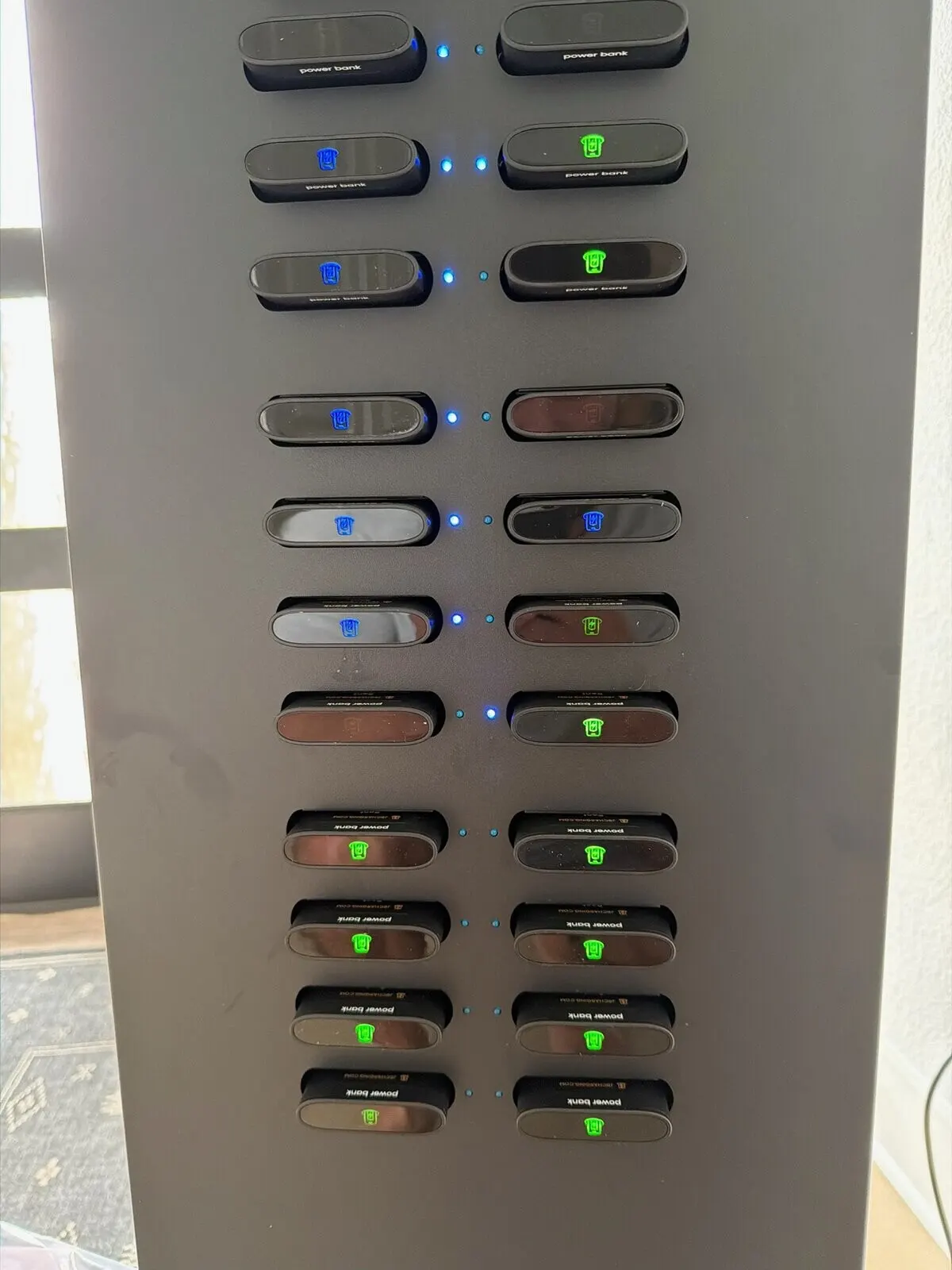
| Low or out of chargers | Few or no charged banks. The screen can be on with nothing to rent. | Check Active Rentals and the non-returns card; restock on your next stop (stocking rules). |
| Idle venue | The station hasn't been renting. | Test-rent to rule out a fault, then look at placement (the 30-day relocation test). |
When it goes dark tells you why: 4 outage patterns
Ask the manager when they last saw the screen lit.
- Dark overnight, back after opening. A 7am alert from a bar that closed at 2 is often the closing routine: an outlet on a switch or timer, or "everything off" on the checklist. Check again an hour after opening. If it came back on its own, move it to an unswitched outlet and talk to the closing manager.
- On and off through the day. Suspect marginal signal or a half-seated plug. Check the plug, then try a better spot or the Wi-Fi backup.
- Dark right after a change. A renovation, a new layout, a new router or Wi-Fi password. Start with whatever changed.
- Never online since it arrived. Keep it at home for now. Give it time on its first start-up, then run a test rental and return. If it doesn't show up or show online in your portal, email support with the station ID before install day (your first 30 days covers the home test).
Signal and the Wi-Fi backup
Every station we sell ships with a built-in 4G SIM at no charge, with Wi-Fi as a backup and no monthly fees; it doesn't need the venue's network. But 4G fades in basements, concrete rooms, back hallways and deep buildings, so confirm the station shows online at the exact spot before you leave (placement rules).
- Marginal signal? Move a few feet, toward a window or a street-side wall.
- Set up the Wi-Fi backup on install day, not after a failure. Ask our support team to walk you through connecting the station to a staff or back-office network. Get the network name and password from the manager first, and ask who changes them; a new router or password is how a backup quietly stops working.
Stop it coming back
Someone will unplug your station eventually, usually for a good reason: the cleaners need the outlet, the closing checklist says "everything off," or a new hire has no idea what the box is.
-
Pick an unswitched outlet nobody else wants. Not the one by the door the cleaners use.
-
Label the plug and the outlet. A tag on the cord behind the plug, a sticker beside the outlet:
PHONE CHARGING STATION. PLEASE KEEP PLUGGED IN.
Need this outlet? Call or text [your name] at [your number] first.
-
Tell the closing manager, not just the owner. "Leave the charging station plugged in overnight. It charges the power banks for tomorrow."
-
Give staff a reason to care. Staff who register with the station's staff code get free rentals, within limits. People who use the station notice when it's dark.
-
Answer the power question first. Even at its 60-watt adapter's full rating around the clock, a J8 Pro uses about $6 of electricity a month at the U.S. average commercial rate of about 14.5 cents per kWh (EIA, July 2026, preliminary), more in high-rate states.
Keep a venue record for each station. A fix by text at 11pm only works if you already know the outlet, the breaker and the manager. Fill it in on install day:
| Field | Example |
|---|---|
| Station ID | From your portal |
| Outlet | Restroom hallway, left outlet, not on a switch |
| Breaker | Back-office panel; closing manager has the key |
| Wi-Fi backup | Network name, and who changes the password |
| Contacts | Day and closing managers; both prefer text |
| Busy nights | Thu-Sat, doors at 8pm |
| Last outage | Cleaners unplugged it; relabeled the plug |
Next step
Still dark after the flowchart? Send the step 5 email to team@jbcharging.com. Still deciding whether to run stations? Book a call and ask us about signal and outlets at the venues you have in mind.
Examples are illustrative only, not a forecast or a typical result. What a station earns depends on the venue, placement, pricing, local demand, and how actively you run it.
Frequently Asked Questions
Does a phone charging station need the venue's Wi-Fi?
No. Every station JB sells ships with a built-in 4G SIM at no charge, and Wi-Fi is only a backup, so where 4G is strong the venue has nothing to set up. Check the signal at the exact spot before you commit, because basements and concrete rooms can be weak. In a weak room, ask JB support to help you add the venue's staff or back-office Wi-Fi as the backup on install day.
How will I know if my charging station goes offline?
Your Distributor Portal's Overview has a "needs attention" list that flags offline stations, a card reader that's down, stations low on or out of charged banks, and idle venues. It puts the machines worth acting on first rather than listing every station, so scan the station overview too, especially for a newly placed machine. Install the portal on your phone as JB Hub and check it every morning. Don't wait for the venue to call; staff often don't notice a dark station.
Why does my charging station show offline?
It has lost power or lost its connection. Ask the venue whether the screen is lit: if it's dark, check the plug, the adapter cable and the outlet; if it's lit, power-cycle it, then look at signal and the Wi-Fi backup. If none of that works, email team@jbcharging.com with the station ID and photos.
My station is brand new and has never shown online. What do I do?
Don't install it yet. Plug it in at home, give it time on its first start-up, and run a test rental and return. If it doesn't show up, or doesn't show online, in your Distributor Portal, email team@jbcharging.com with the station ID before install day. That's a setup question, not an outage.
Who fixes a charging station that goes down late at night?
You do, as the operator. JB provides the platform, 4G connectivity, software and renter support, and renters can reach JB through the machine, the app or their receipt. Local station and venue issues are the operator's to handle. Don't promise a venue round-the-clock service or a response time. Label the plug with your number, agree on how the manager reaches you, and check your portal's alerts and station overview every day.
Does the warranty cover a station that won't come online?
It covers hardware faults, not outlets or signal. JB's 3-year limited warranty from delivery covers manufacturing defects and hardware malfunctions under normal use. It excludes misuse, accidents, modifications, normal wear and operating outside recommended conditions. Rule out power, the outlet and signal first. If it still points to hardware, email team@jbcharging.com with your order number and photos or video.

